D5 Works MCP: Setup, Usage & Troubleshooting
Connect D5 Works to your AI Agent to find furniture and creative assets, compare options, and keep source links with your shortlist. This guide covers MCP and Skill installation, API key setup, example prompts, and troubleshooting.
Quick start and supported resources
Search for furniture products, 3D models, 2D assets, HDRI lighting, and PBR materials. Check the returned resource type, dimensions, format, license, and access requirements before using an asset. Search results do not guarantee a matching downloadable model or automatic import into your design software.
- Copy the instruction below into your supported AI Agent and follow its setup prompts.
- Create a Works API key and enter it only through the protected configuration flow. Never include the key in a shared prompt, screenshot, or log.
- Reload your Agent if requested, verify that the Works MCP tools are available, then run a small search and inspect the returned source link.
Official setup resources
- D5 Works Skill package (ZIP) — pending publication.
- MCP service endpoint — available; configure this address in your MCP client.
- Sign in and apply for an API key — available.
- Installation instructions (Markdown) — pending publication.
The package and installation guide must be published before the installation instruction below can be used.
Follow https://usa.works.d5cdn.com/mcp/d5-works-mcp-install.md to install D5 Works MCP and its Skill.
Troubleshoot with your AI Agent
Give your Agent the text version of this guide along with the failed step, exact error message, Agent name and version, operating system, and whether a basic Works search succeeds. Remove API keys, tokens, and personal data first.
Read https://d5works.com/mcp/docs.md and help troubleshoot my D5 Works setup. First ask for my Agent, operating system, failed step, and redacted error. Check installation, authentication, tool availability, and resource access separately. Explain the evidence before proposing a fix. Ask before changing configuration; never ask me to paste an API key here.
- Tools missing: check that the MCP server is installed and enabled in this Agent, then reload it as required by the Agent.
- Authentication error: check key validity and the configured account. Update credentials through the protected configuration flow.
- No suitable results: simplify the brief, check the resource type, and relax one filter at a time.
- Download or import fails: check entitlement, license, link validity, file format, and supported tools. A successful search does not confirm download or import permission.
1. Installation
Complete the following steps in the AI agent you use:
1.1 Install D5 Works MCP and the skill
Open the D5 Works MCP page and copy the installation instruction using Copy instruction. Paste it into a conversation with your AI agent and send it.
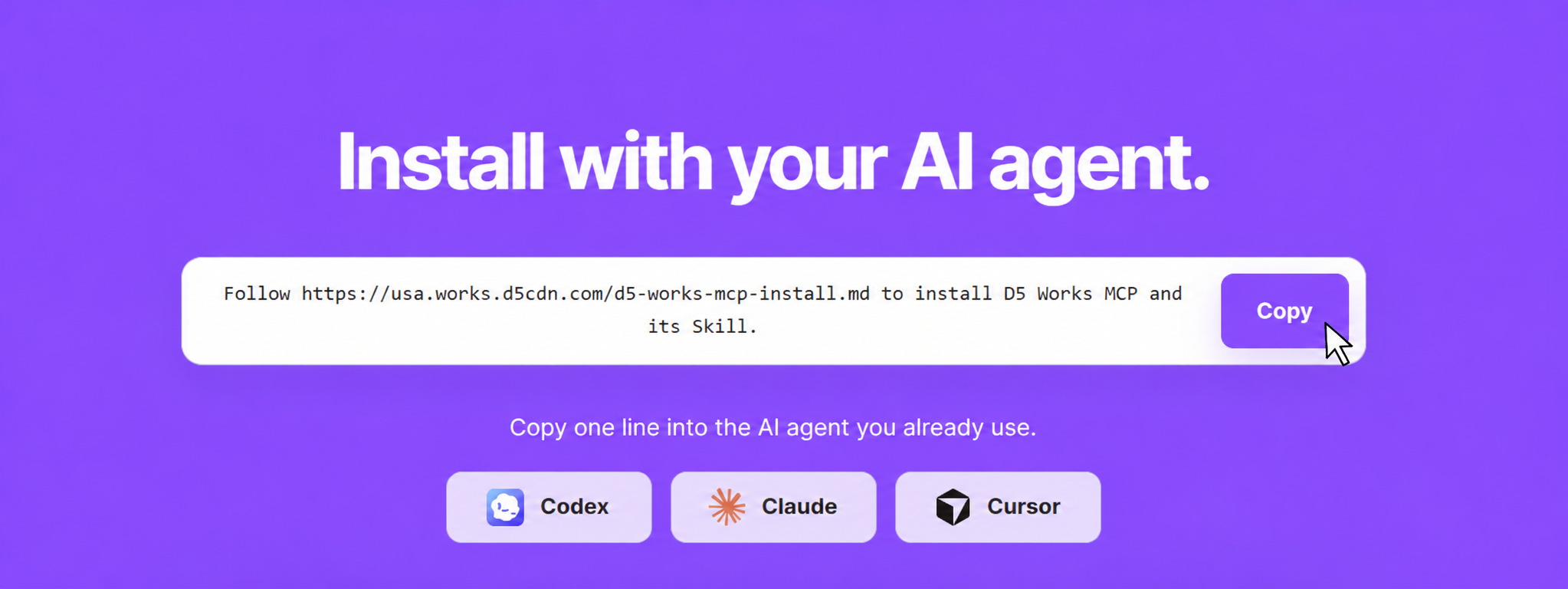
The agent reads the installation guide, identifies the current client, and inspects the package. It then explains the installation location and settings that will change. Review those details and confirm that it can proceed.
It then installs both D5 Works MCP and the bundled D5 Works Skill, preserving your existing configuration. Restart or reload the agent if prompted.
1.2 Create an API key and connect
After the package is installed, the agent provides a link to Create a D5 Works MCP API key. Open the page, sign in, and create a key. If you do not have a D5 account, complete registration first.
Keep the key private. When it is ready, return to the conversation and reply API key ready. Do not paste the key into the chat.
Follow the agent's directions to its protected credential or plugin-configuration interface. Enter the key yourself in the Works API key field. When the client confirms the connection, return to the conversation and reply connected.
Enter the key only through the protected interface. Keep it out of messages, commands, URLs, screenshots, and plaintext files.
1.3 Verify the installation
After you confirm the connection, the agent checks that the skill and MCP tools are available and runs a search to verify the connection.
In Codex, use the screens below to check that D5 Works Skill is installed and enabled.
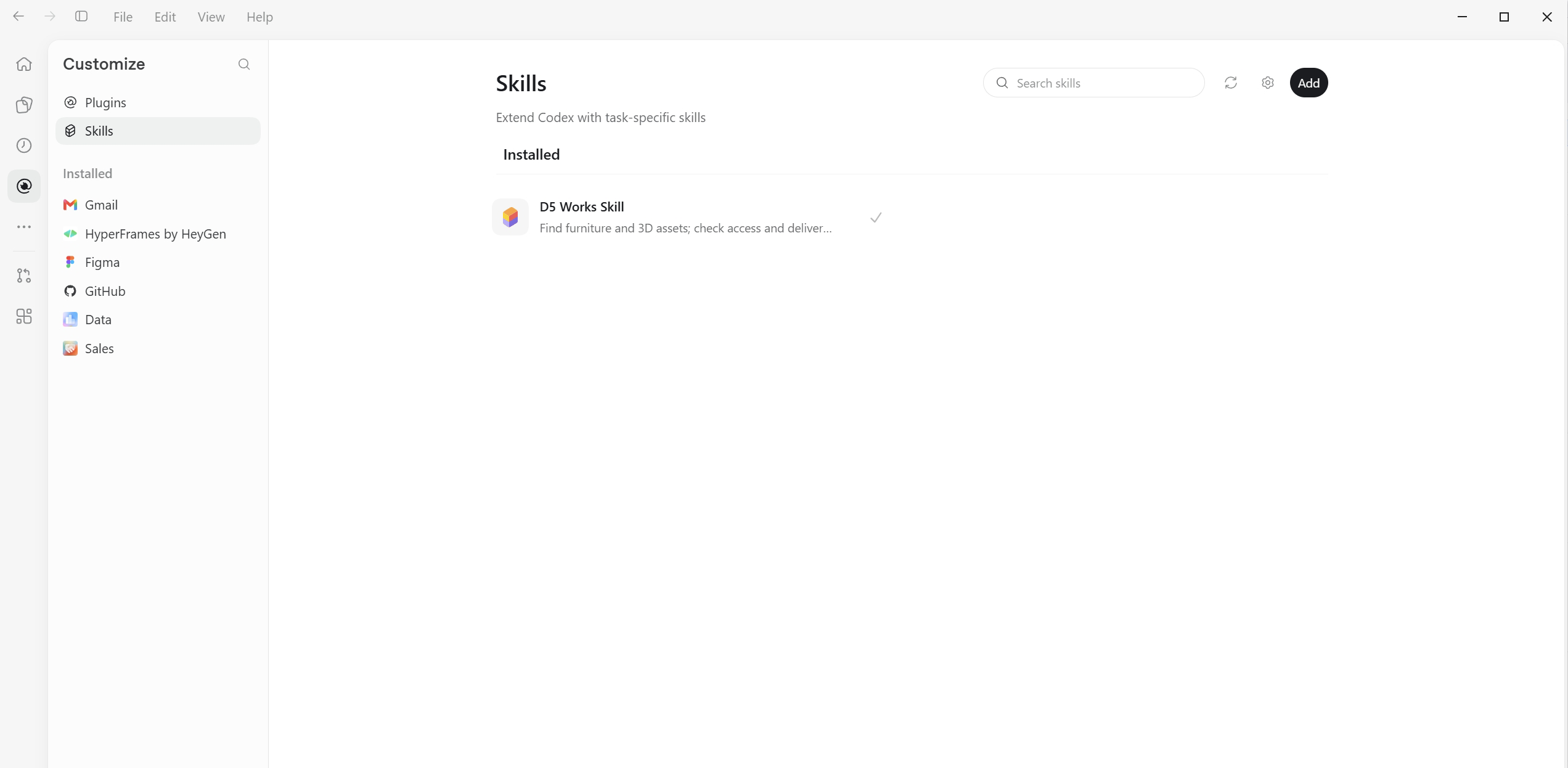
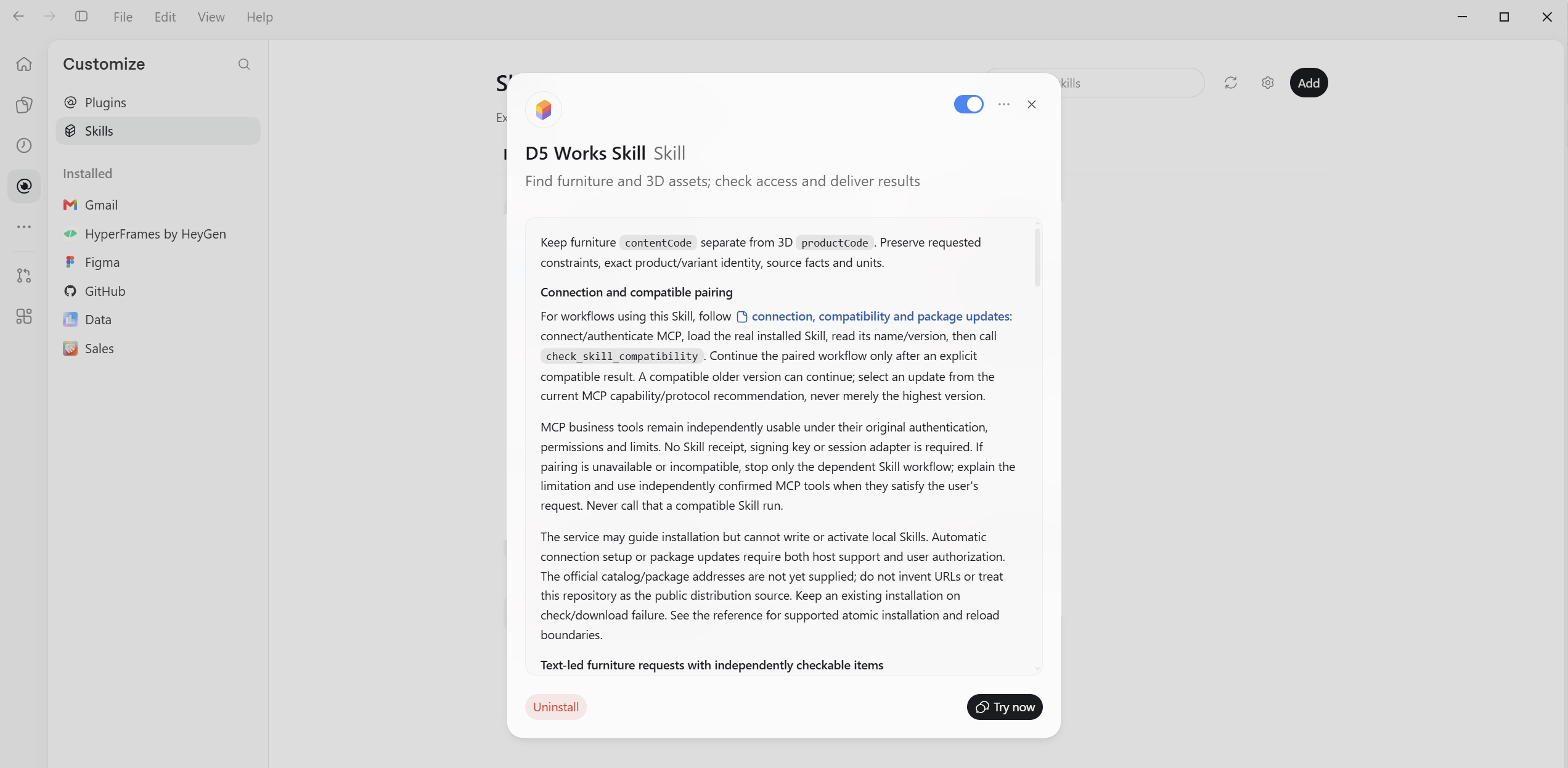
Installation is complete when both the skill check and the MCP search test pass. The agent reports the result and explains how to update or remove this package. If either check fails, use the troubleshooting steps in section 3.
2. Use cases
This guide provides a brief demonstration of how to use D5 Works MCP and its skill.
Use them at the design stages below by copying the corresponding prompt into your agent.
| Your design stage | Required input | Use case |
|---|---|---|
| Furniture sourcing | Furniture type, style, color, and material | 2.1 Find real-brand sofas |
| Developing a room scheme | A reference image showing the design direction | 2.2 Find a coordinated furniture set |
| Exploring alternatives | An image that clearly shows a single furniture item | 2.3 Find similar furniture from a product image |
| Visualization | Asset category, style, and file format | 2.4 Get free 3D models |
2.1 Find real-brand sofas from your requirements
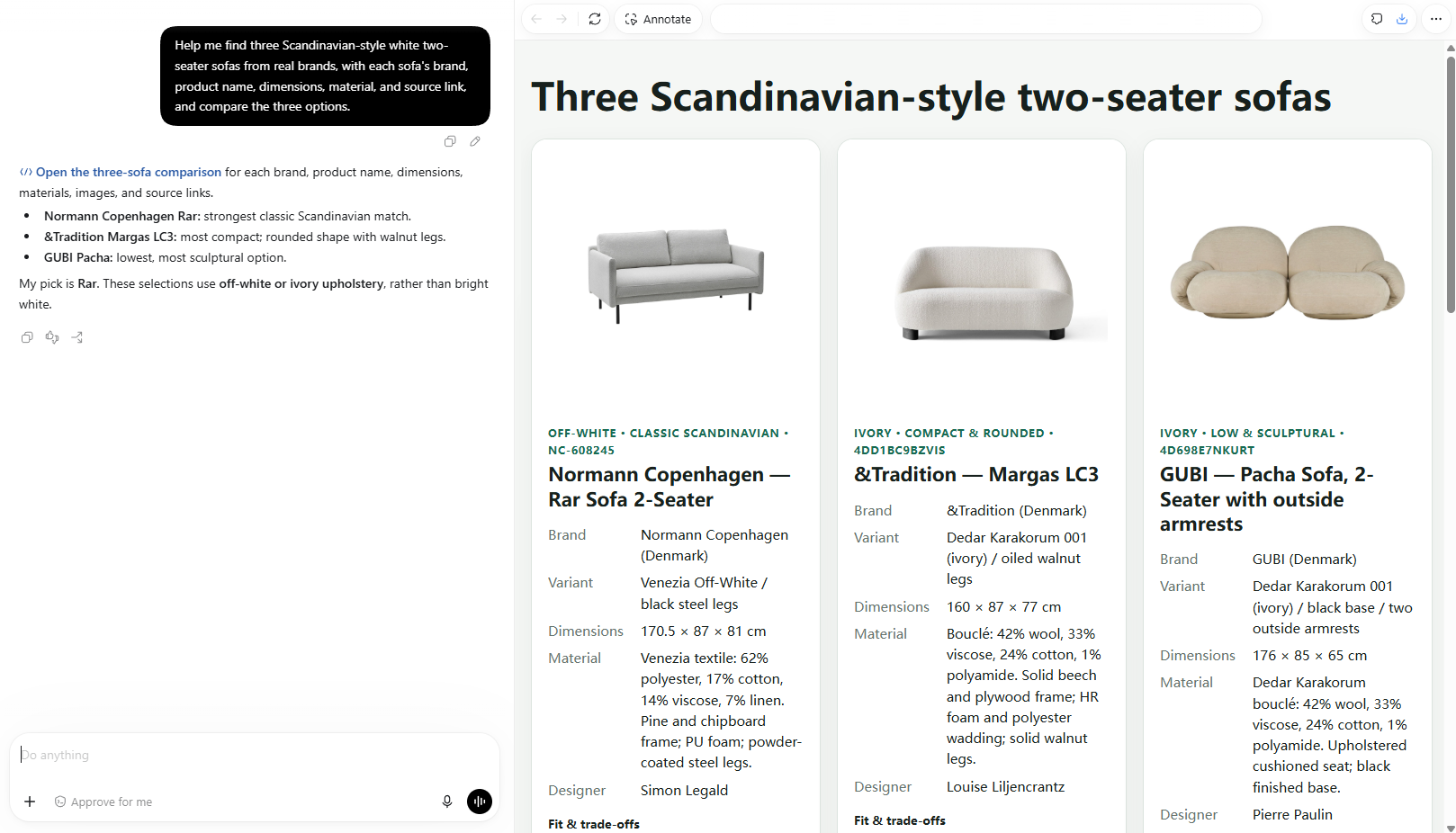
Describe the sofa type, style, color, and material to receive a comparison of three real-brand options.
Help me find three Scandinavian-style two-seater sofas from real brands, with off-white fabric upholstery. Include each sofa's brand, product name, dimensions, material, and source link, and compare the three options in a table. Mark any information you cannot verify as “To be confirmed.”
2.2 Find a coordinated furniture set from a reference
Attach a living-room reference image to receive a coordinated list of a sofa, armchair, coffee table, and floor lamp.
Use D5 Works Skill to find a coordinated set of a two-seater sofa, armchair, coffee table, and floor lamp from real furniture brands that matches the living-room design style in the attached image. Provide a furniture list.

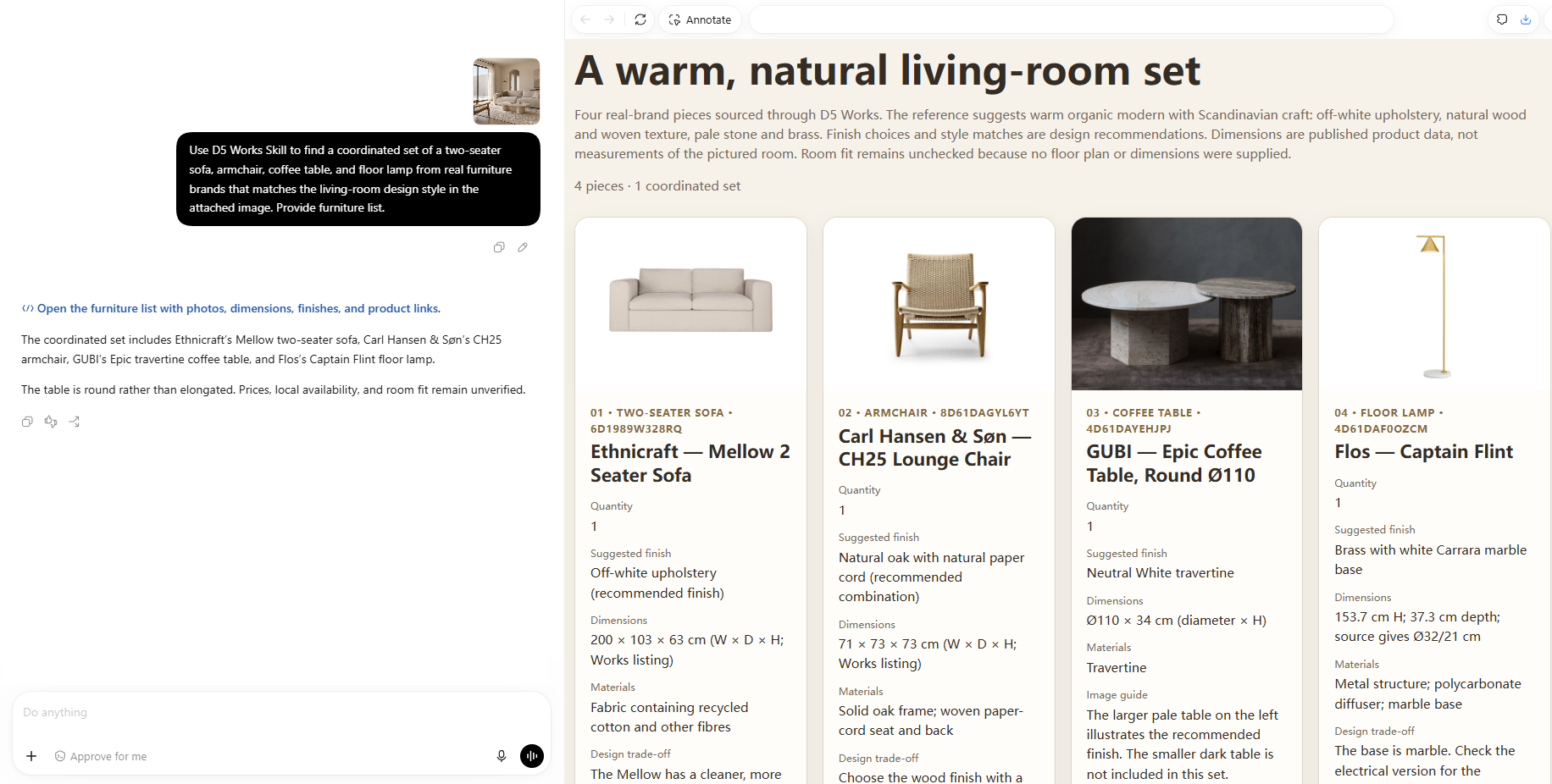
Review the combination as a whole, including its colors, shapes, and materials. Use the furniture list to compare individual products and follow up on their sources.
2.3 Find similar furniture from a product image
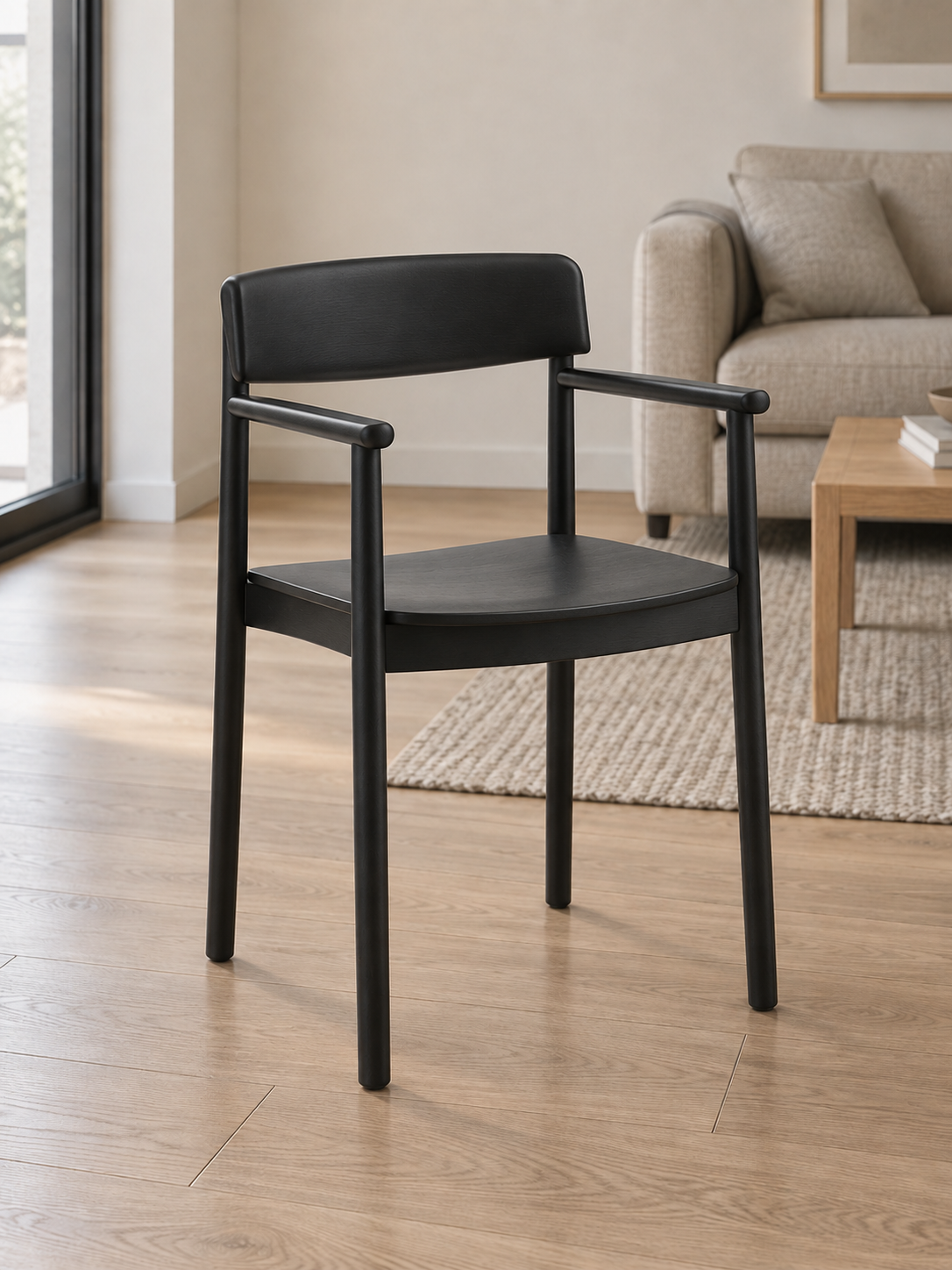
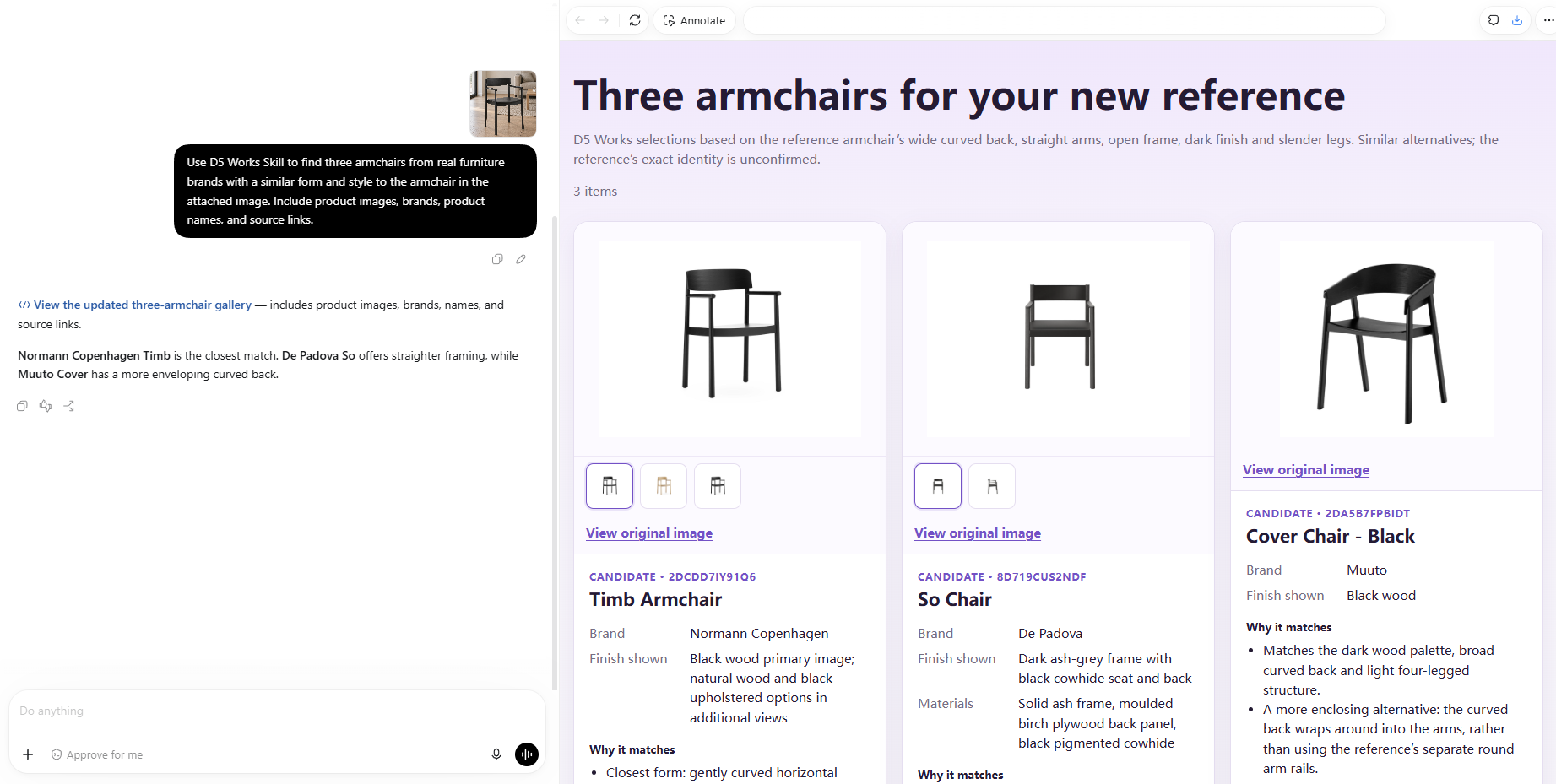
Attach a clear armchair image to receive three real-brand alternatives with similar forms and styles.
Use D5 Works Skill to find three armchairs from real furniture brands with a similar form and style to the armchair in the attached image. Include product images, brands, product names, and source links, and explain the similarities and main differences from the reference.
2.4 Get free 3D models for visualization
Specify the model category, style, and file formats to receive free 3D model options and their available access methods.
Find three free lounge-chair models in SKP or D5A format on Works, in a simple, modern style, and provide download links.
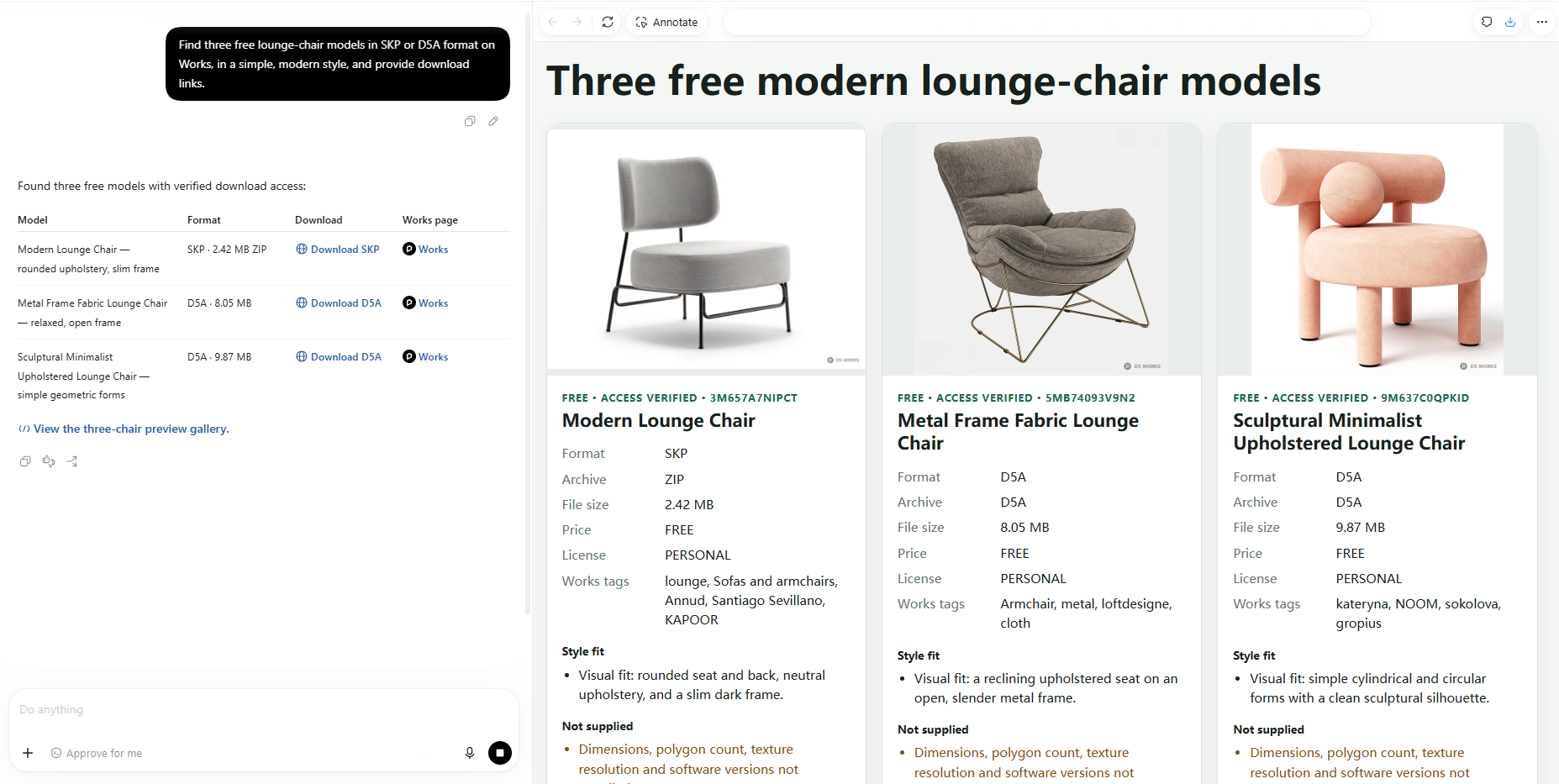
Check the returned format and listed license, then use the available download links. If an asset provides a D5 Launcher action instead, follow that route. After obtaining the model, open or import it in your target software and check scale, materials, and textures.
3. FAQ
3.1 What should I check if installation fails?
| Problem | What to do |
|---|---|
| Authentication fails | Reopen the protected Works API key field, check the key, and replace it if it has expired or been revoked. Reconnect afterward. |
| Works tools do not appear | Check that the package is installed and enabled. Restart or reload the agent, then repeat the installation verification. |
| MCP works but the skill is missing | Ask the agent to check the bundled D5 Works Skill and its supporting files. Reload if required. |
| The agent cannot load the package or securely store the key | Use an agent that supports both MCP and Agent Skills with protected credential entry. |
3.2 Can D5 Works MCP automatically place furniture or render a room?
Furniture sourcing and asset access do not automatically place items in a scene. Scene import, placement, and rendering require the appropriate additional tools. Confirm their availability and the result of the requested action.
3.3 How do I view a furniture list with images?
When using D5 Works Skill, results containing product images are organized into a separate HTML list. Open the file link in the reply to view images, details, and sources. Some images require an internet connection. If an image does not load, ask the agent to check whether its source is still available.
3.4 Does every furniture product have a corresponding 3D model?
Not necessarily. Real furniture and 3D assets are searched separately, and visual similarity does not establish an exact product match. To find a corresponding model, provide the brand, product name, or source link and ask the agent to verify the relationship.
3.5 Why do some assets provide a D5 opening action instead of a download link?
Available access methods can differ by asset; follow the returned result. If it provides a D5 Launcher action, use that route or ask the agent to explain the next step. Receiving an opening action does not confirm that the model has loaded; check the result in the target application.
3.6 Does a free model mean I can use it for any project?
Check the selected asset's listed license and your account access. A FREE catalog label alone does not establish all usage rights.
3.7 What if a download link expires or access is denied?
Ask the agent to re-check access for the same product and file. For an access restriction, confirm that the connected account has the required entitlement.